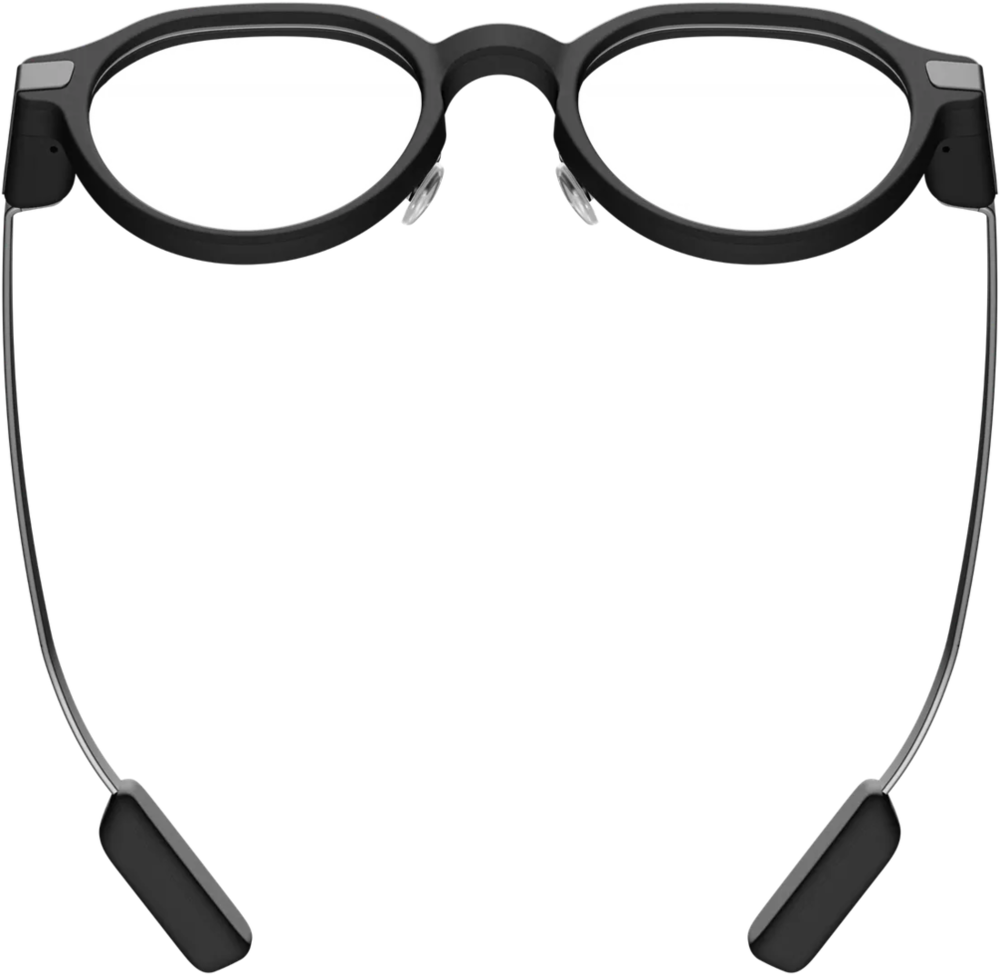
Everything the lenses do, on one page.
COS Glasses turns your Even Realities G2 into a heads-up chief of staff, powered by the AI agents already on your Mac. Ten minutes here and the glasses feel like muscle memory.
App 6.10.639 · build 639
Server 6.73.1
Control 0.5.289
Even G2
Even app 2.2.10+
This guide describes 6.10.639, the current companion pack. It installs by sideload from the Glasses Hub. Most lens examples on this page were drawn from 587; from 592 on, Home and the Sessions list look different, as the notes below describe. 587 was submitted for marketplace review on October 4, 2026, and approval is pending. 624 includes the 588 total-runtime repair, 590 agent activity and companion animation mirror, a compact Home running-session count with stable companion refreshes, 597’s one status mark per row, the 598 and 599 framed activity reader, 600’s server-described Continue behavior, 601’s header and Home status fixes, 602’s steady working mark and session names, 603’s Home hold for Sessions, 604’s offline dictation in Mac only, 605’s offline words kept, 606’s Home hold ring, 607’s sending arrow and phone status marks, 609’s move to Even SDK 0.0.16 with marks that keep up with a faster Even app, 610’s C, O, S on Home and a mark per session on the Sessions list, 611’s mark column beside the list, 615’s centered question mark, 616’s Haiku polish default, 617’s send and session recovery, 618’s session clock that counts through background work, 619’s sent words that stay sent, 620’s hold that continues a Cursor session, 621’s Scan code on your Mac, 622’s hold to talk that fills a circle first, 623’s Meeting Ask on the phone and the lens, and 624’s model switch in the Ask chat. From 609 on it needs Even App 2.2.10 or newer; on Even App 2.2.9, 607 is the newest build that installs. It has not been submitted for marketplace review. The last confirmed Public store listing is 6.10.629; 635 is delivered through the Hub repo.
Included: native session identity, protected saved turns, phone meeting and speaker review, COS status signals, and automatic queue-receipt refresh. Read the offline boundaries before field use.
639 / server 6.72.0 / Control 0.5.289
Choose the live preview engine: Whisper Turbo (default) or Parakeet Ultra, which runs offline on the Neural Engine and measured 10.7% fewer errors than Turbo on our silver set. Pick it on the phone (Settings, Voice, Mac transcription) or in COS Control (Settings, Transcription), and install Parakeet from COS Control. Saved meetings use timestamped Large-v3 with correct word times; the audio front end is highpass only and quiet chunks are found by a speech detector. Older phones keep Turbo previews. Dictation is unchanged.
637 / server 6.71.13 / Control 0.5.288
The first Fact check covers the whole meeting; later ones cover only what is new, and the answer says which. When a claim leaves its starting point implicit, like flying from here, the check starts from your Home city (Settings on the phone, or the Meeting assistant card in COS Control) and says so; leave it blank to use your phone’s area. City and state only, never a street address. The phone layout lines up with the tab bar on every iPhone and foldable, and a meeting the server already finished no longer shows as Live now in COS Control.
635 / server6.71.12 / Control0.5.287
Tap Fact check to check a recent public claim with readable evidence under the existing public-topic opt-in. Private details stay out of public search. Sonnet is the default for fresh Meeting Ask settings; explicit saved choices are preserved. Draft and grounding review use the selected model. Shorter answers retain useful summaries, omit unclear page counts and distinguish reported labor from verified savings.
Ask follow-ups after saving, tap inline transcript/web/file citations, and review an answer as linked Work. The complete635 package includes Moonshine Tiny/ORT, local phone memory keyword search, phone image text/file context, stable status layout and Android pairing hardening. Physical phone/G2/Android acceptance remains pending. Roof-cost comparison usefulness is limited; no verified average or overpricing ratio is promised. Experimental transcription and automatic cue flags remain off; stable transcription stays unchanged.
Exact phone test script. Builds632/633 omitted offline assets and are withdrawn; use complete635 or complete629 for rollback.
Glasses 623 and 624: ask about a meeting from the phone or the lens
On the phone, the Meetings view starts with Live / recent meeting · Ask when this app has a live or recent recording, and a saved meeting has its Meeting Ask history. Pick Catch me up, Summarize so far, Suggest questions or Action items, or type your own question and tap Ask. One answer runs at a time; Stop answer ends it and Retry answer asks again. COS on your Mac keeps every question and answer, so they are still there after you leave the view or end the recording. Each answer names the model that answered, how far into the meeting it read, and its sources; Show in transcript jumps to the cited line. Since 624 a Model control beside Ask switches the meeting assistant model. It is the same setting COS Control changes, and Sonnet is the default for fresh settings; explicit saved choices are preserved.
On the lens, tap the live transcript while a meeting records. Its menu now also offers Catch me up, Summarize so far, Suggest questions, Action items and Recent answers, and Quick Actions ends with Meeting Ask. A choice opens the MEETING ASK reader with up to 10 recent answers; since 624 its footer names the model that answered. Tap, then tap again at Tap again: live transcript, to go back where you were reading. Ask on the lens never uses the microphone. MEETING AI still only starts and stops recording, and asking never starts or stops one.
Meeting Ask needs server 6.69.0 or newer; with an older server the Ask view says to update COS on your Mac and recording is not affected. Server 6.70.0 lets a plain public question, such as who is, search the web. By default only typed public-topic words go into a search. Server 6.71.12 can also select public-topic words from recent transcript passages after explicit consent; files, calendar, memory and unrelated private details do not lend search words, and a personal detail or a key withholds the search with the reason. Presets never search. The build notes record these views tested against a fake COS, not yet a phone and G2 with a real server. Package rollback is 623 with the same server.
Glasses 622: hold to talk fills a circle first
Keep holding until the circle fills and recording starts; the nav shows ◌ Keep holding, ◐ Keep holding, ● Keep holding, then ● Starting. Let go early, tap, or leave the page and nothing starts. The fill takes half a second by default. Choose Instant, 0.3, 0.5, 0.8, 1 or 1.5 seconds under Settings, Voice, Hold to talk: fill time; Instant is the behavior before 622. A temple hold waits the same time but shows nothing until you speak.
Private candidate 618: the session clock counts the whole run
Build 6.10.618 times the whole run of work at the bottom of a session’s page, not only the current turn, so a background agent reporting back no longer resets it to 0s. When the main turn is done and agents are still working, the footer says Background 12m 04s. When the Mac cannot tell whether an agent is still working, the clock keeps counting with a ? in front, and it stops after 20 minutes with no word. It stops when the Mac reports nothing running for 12 seconds. A session that was already working when the lens opened shows a + after the time, because the real time is longer. Background shell commands run outside an agent are not counted yet. Same servers as 617. Rollback is build 617 with the same server.
Private candidate 617: sends stay with the page that started them
Build 6.10.617 keeps late Continue, queued, phone-saved and fork results with the page visit that started the send. Leaving Sessions or opening another draft is respected, and an old result cannot clear a new draft. Busy or stale-session failures now give steps to recover the same session instead of generic fork advice. Same servers as 616. Rollback is build 616 with the same server.
Private candidate 616: Haiku polishes dictation by default
Build 6.10.616 polishes dictation with Haiku 5.5 by default, to cost less. Voice settings also offers Sonnet 5.5 for higher-quality polish and GPT-5.6 Luna Fast through Cursor. A model you already chose is kept, and if polish fails the original transcription stays. No new server install is needed. Same servers as 615. Rollback is build 615 with the same server.
Private candidate 615: the question mark sits centered
Build 6.10.615 centers the question mark in the lower Sessions rows and keeps it in place as the cursor moves. It is built on 611 and replaces the withdrawn 614; 612 and 613 were not released. Same servers as 611. Rollback is build 611 with the same server.
Private candidate 611: marks no longer slide behind the list
Build 6.10.611 puts the Sessions mark column beside the list instead of on top of it. In 610 a swipe moved the list’s text under the column, so a row’s glyph slid behind the marks until the list redrew. Same servers as 610. Rollback is build 610 with the same server.
Private candidate 610: Home writes C, O, S, and Sessions shows each session’s mark
Build 6.10.610 traces C, then O, then S through the working mark on Home; other screens keep the mark as before. The Sessions list shows each session’s mark in a column on the left: the moving working mark while it writes, pulsing waiting bars and its 1q count while a follow-up waits, a dim mark when it is open on your Mac, and a ? ring when COS could not check it. While any row has a mark, a long quiet title shows about 6 fewer characters. If the glasses refuse the column, the list falls back to text glyphs. The phone list keeps its glyphs. Same servers as 609. Rollback is build 609 with the same server.
Private candidate 609: Even SDK 0.0.16, and marks that keep up
Build 6.10.609 moves to Even SDK 0.0.16, which newer Even apps will require; what it sends to the glasses is unchanged. It needs Even App 2.2.10 or newer and will not install on 2.2.9, where 607 is the rollback. On a faster Even app the marks draw twice a second without skipping frames, and the Home hold ring draws all 12 steps on a 4 second hold. On a slower Even app nothing changes. It replaces 608, a device-test build. Same servers as 607.
Private candidate 607: a sending arrow, and status marks on the phone
Build 6.10.607 shows a moving sending arrow on a prompt’s page while the Mac has not taken it yet, for up to 45 seconds, then the waiting mark. Held sends still wait, a gone Mac still pulses, and a running reply still shows the COS working mark. The G2 preview on the phone now shows the small status mark from the top right of the lens (saved turns, the thread queue, questions, the Mac waiting page and meetings), in the phone theme’s text colour. Dictation itself is unchanged. Same servers as 606. Rollback is build 606 with the same server.
Private candidate 606: a ring for the Home hold
Build 6.10.606 shows the Home hold filling: while you hold the ring on Home, the COS mark becomes a ring that fills clockwise over the hold, and Sessions opens when it is full. Letting go early brings the mark back. The footer countdown stays, the hold is still 3 seconds by default (2, 3 or 4 in Settings), and it is still ring only. Same servers as 605. Rollback is build 605 with the same server.
Private candidate 605: offline dictation keeps your words
Build 6.10.605 no longer throws away words you already saw: when the phone’s final text of an offline dictation comes back empty, the live preview is used if it is believable (two or more words, not a silence phrase, covering the recording), and the review says Preview text so you check it first. Silence still says No speech. With the Mac already gone as a dictation starts, the phone takes over after 1.5 seconds instead of 10. Same servers as 604. Rollback is build 604 with the same server.
Private candidate 604: dictation works offline
Build 6.10.604 transcribes dictation on the phone when the Mac is unreachable, also with Transcription set to Mac only: the phone’s built-in Tiny takes over instead of the audio waiting for the Mac, and a reachable Mac still transcribes. After a hold switches to a tap recording, the recorder’s top line keeps the pulsing Let go, tap to confirm whole, and the battery moves to the footer until you let go. The Home hold that opens Sessions now takes 3 seconds, and Settings offers 2, 3 or 4. Same servers as 603. Rollback is build 603 with the same server.
Versioned meeting test packs
Companion 625 and 626 are preserved as versioned device-test packs in the Hub repository. 626 adds ended-meeting questions, phone file attachment and COS search settings with server 6.71.1 or newer. The public canonical companion remains 624. Companion 627 is a private hardware acceptance candidate and is not promoted by this server and Control update.
Control 0.5.287 and server 6.71.12: meeting evidence and compact setup
Meeting answers include a qualitative confidence note with a reason. COS accounts for incomplete G2 transcription, keeps evidenced test scenarios separate from real commitments, and distinguishes a clear correction from an unresolved contradiction. New questions about saved meetings can read accepted finalized passages; previous answers retain their original quotations. Model qualification details are collapsed until expanded. Optional Jev setup no longer holds the setup reminder open. Labeled answers and the COS-styled What’s New view from Control 0.5.283 are included.
Meeting context on compatible companion builds lets you confirm a domain and calendar suggestion for COS lookup. Calendar metadata does not prove what was said. Timestamp and progressive-refinement canaries remain disabled; no raw-ASR accuracy or 30-second refinement claim is made. With explicit public-topic consent, server 6.71.12 can retrieve a claim from the recent transcript and a cost benchmark, cite linked evidence, and distinguish an average from a comparable project. The setting defaults off. Companion 628 exposes that choice and a native bridge error-loop fix; it remains a private device-test candidate. Public companion 624 stays supported.
Control 0.5.282 and server 6.70.0: ask about a live meeting
The menu-bar icon and a REC badge in the Dock show when a meeting records. Open the live transcript from the menu-bar panel, the Dock menu, a Dock click or Command-Shift-L. Live COS Ask sits beside it with Catch me up, Summarize so far, Suggest questions, Action items and a question box. A model runs only when you ask. Answers start from the current meeting and cite the lines they used; a question you type can also look in COS memory and earlier meetings, and with server 6.70.0 a plain public question can search the web using only the words you typed.
Questions, answers and sources are saved with the meeting, and unsent questions are saved too. Stop or retry an answer yourself; nothing reruns on its own. Saved meetings show their Ask history, and sources open where they came from: the transcript line, an earlier meeting, a memory, the file or the web page. Add files under Files shared in this meeting, or drop or paste a screenshot on the Ask box: text is read on your Mac and shared with Ask, and files that look like they hold credentials are held back. Pick the Meeting assistant model under the Ask box or in Settings; Sonnet is the default for fresh settings; explicit saved choices are preserved. Copy full context adds every answer, its sources and file text to the transcript, and Copy transcript on a saved meeting copies only the transcript. Ask keeps saving while the Mac is locked during a meeting.
Ask needs server 6.69.0 or newer. On an older server, Ask and Settings say to update the COS server, and the live transcript keeps working. Includes the 0.5.278 Live now transcript and the 0.5.277 panel changes. Pairs with server 6.70.0.
Control 0.5.278: follow a live meeting on your Mac
While a G2 meeting records, Meetings pins a Live now row with a red dot and elapsed time. Open it to read the transcript a few seconds behind the conversation. It follows the newest line until you scroll up; Jump to live catches up, and Copy transcript copies all text so far with speaker names and times.
Live text is preliminary, and speaker names are voice matches rather than certainties. Saving opens the saved meeting, whose text can change as it is finalized. Discarding shows that the meeting ended without saving. A hidden window stops checking for new text. Show live meeting transcript in Settings turns the view off. Pairs with server 6.67.0.
The menu-bar panel also includes the 0.5.277 changes: the standing version card is gone, the version appears beside Control, and the top-right refresh button refreshes status and checks for updates. Available updates open What’s New before you choose Download and install.
Control 0.5.277: a tidier panel
The standing version card is gone from the menu-bar panel; updates still arrive as the gold Update available banner. The refresh button at the top right refreshes status and checks for updates, and the line under Control says Checking for updates, then Up to date or Couldn’t check for updates. The version shows next to Control, and Settings in Activity has the same refresh and check button.
Control 0.5.276: Messages answers are formatted
COS answers in Messages (Recent, archived chats and session chat replies) now render bold, lists, headings, quotes, code and links instead of raw Markdown, the same way Meetings does. Row previews show clean text. Copy turn and Copy + images still copy the original text. Only web links are clickable in any pane that renders Markdown, and italic text now draws as italic.
Control 0.5.275: What’s New before you update
When an update is ready, Update in the menu-bar panel (or Check for updates) opens a What’s New window with the release, a summary and what changed. Download and install shows each step, and COS Control quits and reopens by itself while the glasses server keeps running. After an update, What’s New opens once on its own. An update that cannot be staged now stays open and says why, instead of closing COS Control.
Control 0.5.274: connect your glasses in one scan
Setup guide, Glasses: COS checks Tailscale on your Mac and on your iPhone, then shows a pairing code. In COS Glasses 6.10.621 tap Scan code on your Mac, photograph the code (or use a screenshot, or type it), then tap Allow on the Mac. Codes last 5 minutes and work once, and the Allow card names the device and warns when it is not on your Tailscale account. Pairing on home Wi-Fi is an opt-in 10-minute switch. When a new COS Control is ready, the menu-bar glasses turn gold and the panel opens with an Update available banner.
Server 6.67.0 adds the pairing routes. Pasting the pairing token still works everywhere.
Control 0.5.273: setup and Settings in Activity
Open COS Control from the Dock and choose Settings in Activity. It shares the menu-bar controls and saved preferences. The setup guide distinguishes missing AI tools from tools that need sign-in, guides macOS permissions, and resumes where you left off. Local voice downloads a checksum-verified, Developer ID signed and Apple-notarized Whisper runtime without Homebrew. It benchmarks your Mac and keeps an existing Balanced or Max choice. Recommendations for smaller Macs remain provisional.
Server 6.66.0 adds the managed Whisper path and reliable Claude detection outside your shell. Haiku is the server default for final dictation polish when the client does not send an explicit choice; saved client selections still win. This is separate from your local Whisper transcription tier.
Glasses 619: device-test candidate
The versioned Hub package includes session-clock and dictation recovery fixes. Physical G2 acceptance is still pending. This does not change the confirmed Even Hub listing or submitted companion version.
Server 6.65.0: Work search and task dates
The server adds optional search by meaning for Work and source or git-history dates for task cards. Meaning search needs a TypeSafe key; it removes URLs, email addresses and secrets from card text before sending it, and has its own daily budget. Task dates do not change task files. Server 6.64.0 also added exact meeting context keys for linked files. Control 0.5.266 includes the newer Work search and meeting-file client features. Existing glasses keep working.
Private candidate 603: hold Home for Sessions
Build 6.10.603 opens Sessions when you hold the ring on Home for 4 seconds; from 1 second the footer counts down from 3, and letting go early does nothing. It works with the phone locked. Sessions opens on the session that is writing, or the latest. Ring only: a temple hold on Home does nothing. A session page keeps its status row, so a session that starts writing animates at once; it says when COS could not check. Session list marks: ◐ writing, ○ open, ● a follow-up you queued, ? could not check. Home weather comes back after a missed lookup and keeps the last good copy for up to 3 hours, near where it was fetched. Server 6.63.1 also keeps the last good weather across a server restart. Tap, scroll and double-tap are unchanged. Same servers as 600. Rollback is build 602 with the same server.
Private candidate 602: the mark keeps moving
Build 6.10.602 keeps the working mark moving while a reply streams; slow screen writes no longer freeze it. A session page’s top line now names the session you are in, and a session with no name keeps Sess. Same servers as 600. Rollback is build 601 with the same server.
Private candidate 601: the clock stays on Messages
Build 6.10.601 keeps the clock and date on the Messages nav line: when the line is full, the page position the footer already shows gives way first. The battery is shown in the nav only, not again in the footer (the recorder keeps it in the footer). Home no longer reads “status unknown”: until a fresh session check arrives it shows Chief of Staff, and a Mac that cannot be reached still says so. Same servers as 600. Rollback is build 600 with the same server.
Private candidate 600: Continue tells you what will run
Build 6.10.600 shows the server’s Continue note on the phone and glasses. With server 6.62.1, Cursor continuation uses the session settings the server reports; older glasses retain Ask behavior unless they explicitly support this note. Claude, Codex and Cursor cancellation remains subject to verified provider capabilities. The framed reader, COS animation and familiar Home gestures are retained.
Server 6.62.1 also identifies failed fork copies and distinguishes usage limits, sign-in failures and conversations that are too long. Server 6.63.0 can run a fork in the background: a client that sends a fork id gets an answer at once and reads the outcome later, a repeated id never makes a second copy, and a fork interrupted by a server restart reads back as possibly made, never as failed. A private, short-lived request binding helps prompt hooks retrieve memory from the user’s actual question. This does not add a new Control app release. Still open: Home uses a capped session history and can display a lower-bound running count; it is not yet a precise mirror of the desktop pet. Build 600 is available for sideload testing, not submitted to the marketplace; physical G2 acceptance remains pending. Rollback is frozen build 599 with server 6.61.7.
Private candidate 599: Activity inside the reader frame
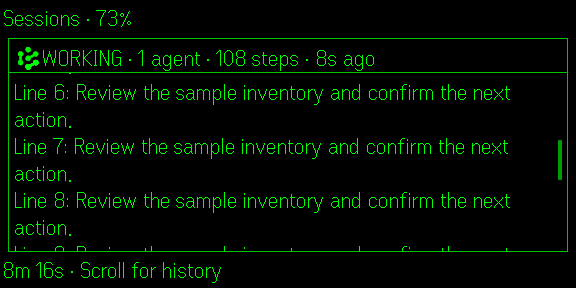
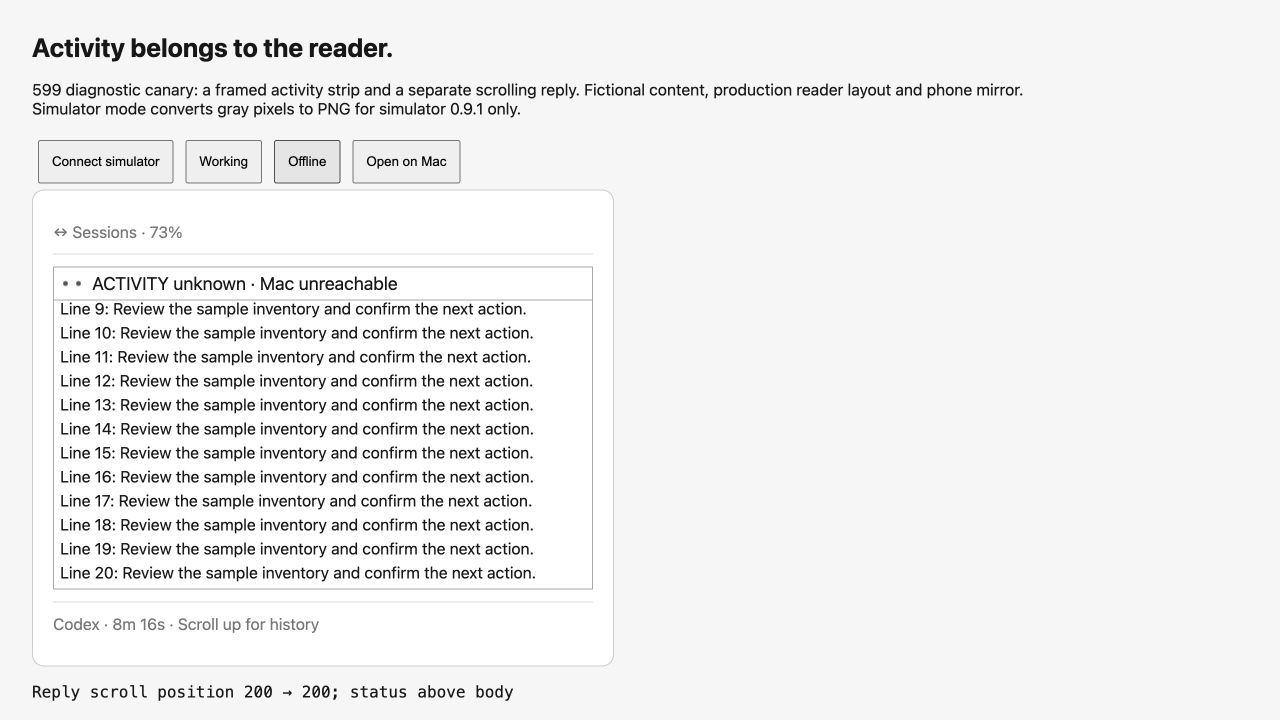
One navigation row, one framed reader. 599 keeps the COS animation, state, agent count, steps and last-step age inside the reader’s border, separated from the scrolling reply by a thin divider. Session navigation drops the repeated provider tag; the provider and elapsed runtime remain in the footer. The reply keeps its own scroll area, so it cannot run behind the activity row. The phone G2 mirror uses the same monochrome grouping. Home and gestures are unchanged.
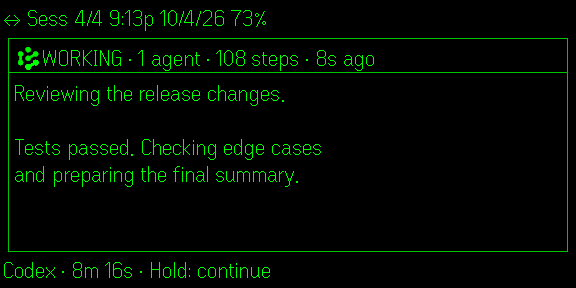
Official simulator capture with fictional content and production reader geometry. Scrolled simulator proof and phone browser transition proof. These are simulator/browser checks, not physical G2/iPhone acceptance. The user confirmed the overlap repair in 598; physical 599 acceptance remains pending.
599 also carries forward 597’s single-mark and reader-stability fixes:
A row with the COS mark carries words only. On a 596 device, the still mark sat beside “○ OPEN on your Mac”. The same doubling affected idle, waiting, failed, cancelled, queued, sending, last-seen and Mac-unreachable rows on Home, Sessions and Messages. The mark now carries the state. Text-only fallbacks have no mark, so they keep their glyph. A Session’s mark follows live work, not history: a thread whose child agents finished hours ago reads like any quiet thread, and an active thread with no children animates. A stale check of finished children no longer turns OPEN into “status unknown”. A live Session row that loses the Mac reads “ACTIVITY unknown” with the offline mark.
Background polls never add or remove a Session’s status row under you, so the reader keeps its scroll. A row already up settles in place, and presence changes wait for a page you open, a chunk you move to, or a held update you release. Closing the Session action menu or a return confirmation resumes the working animation; it no longer stays frozen until the trail changes. The phone mirror shows the lens row’s own words, and shows a row and mark only when the lens has one. The Messages text fallback and last-resort text page no longer bring back the solid running dot. Gestures, history, storage and model routing are unchanged.
The COS mark, Chief of Staff · 3 running, share one Home row. Version moves to the footer; provider detail belongs inside Sessions. Tap still opens the latest message. Swipe up opens Messages; swipe down opens Menu. Sessions remains a menu item, with no new shortcut. Blank lines separate activity, weather/calendar, and navigation. All three hints now share one closing row: Tap=Latest · ↑ Messages · ↓ Menu. Calendar entries use “Next:” rather than a directional arrow. First-use recording behavior is unchanged.
Home keeps the COS identity visible during checking, stale or unknown sync data, and Mac-unreachable states. A still logo accompanies uncertain status; only fresh confirmed activity animates. The phone Home preview uses the same still brand during native refresh gaps. Sessions and Messages show a still COS mark while waiting for accepted working frames; offline and completion retain distinct signals. A rejected animated layout retries on normal owned renders with a bounded 2–30-second backoff, instead of staying disabled until app relaunch. If native image rendering remains unavailable, the readable working fallback does not add a completion-like solid circle. The monochrome phone G2 mirror keeps its status row through step and trail refreshes, using accepted HUD frames. It no longer replaces the COS mark with a solid dot during each text repaint. Genuine connection loss still shows “Last seen working”; a new state cannot borrow an old state's animation pixels. Steps, last-step age and total runtime remain visible in Sessions.
An open idle window does not count as work. Child agents count under their parent; capped or degraded scans show a lower bound (+). Cached or expired evidence reads unknown, and losing contact with the Mac never means zero. Parent counts use the existing server 6.61.6 API. Child-agent and compaction observations require server 6.61.7 and refreshed Claude/Cursor hooks. Server 6.63.1 is published on npm. Refresh hooks through COS Control after updating, and reopen native sessions if needed. Codex live compaction-start telemetry is not claimed. 599 pairs with the same server 6.62.1, with no API or storage migration and no server restart. A Codex thread counts as writing only when its transcript changed in the last 30 seconds, so long reasoning or tool calls can read OPEN while it is still working. That is a server follow-up, not part of 597.
The 596 animation preview remains an illustration of the underlying animation, not the new scroll layout. Frozen 598 stays in the Glasses Hub as the rollback package. Physical G2 and iPhone acceptance remain pending. 599 has not been uploaded or submitted for marketplace review, and it does not change the marketplace status above.